Remote control for Windows
Remote control for Windows, without the friction.
Open an encrypted Windows session from the device list. No VPN, separate viewer, or inbound firewall rule.
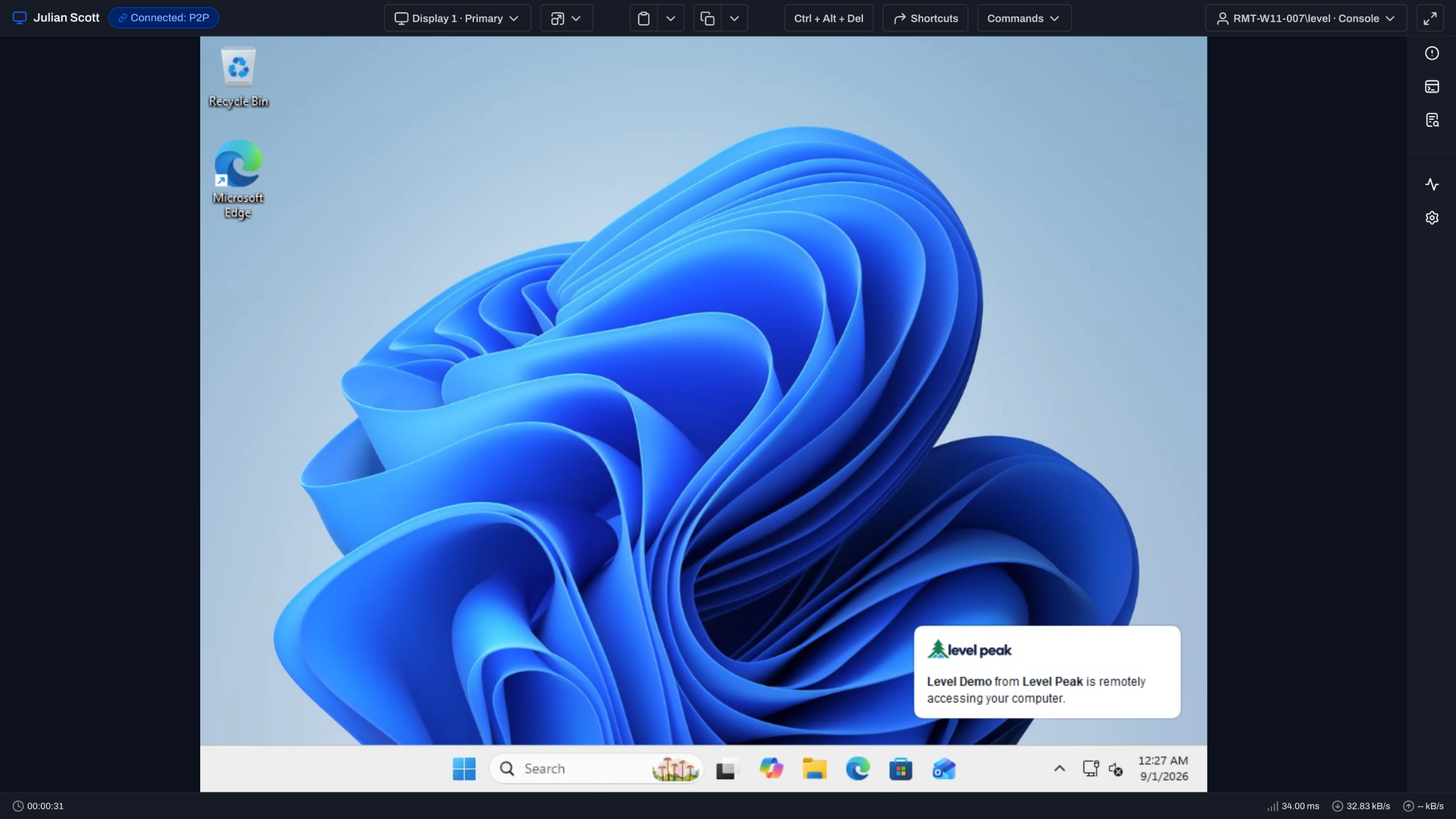
Click the device. Take control.
The Windows desktop opens in a new browser tab.
Nothing else to install.
The Level agent handles the connection. Windows needs no additional remote control setup.
Reach the sign-in screen.
Connect before a user signs in, then switch active user sessions from the toolbar.
Work across every display.
Use the Display menu to move between monitors without ending or restarting the session.
Send the Windows commands you need.
Send Ctrl+Alt+Del, a preset, or a custom sequence. Restart, scale, or go full screen from the toolbar.
The desktop and the device tools stay together.
Fix the screen, the service, or the file from the same tab.
Work the desktop live.
Control the mouse and keyboard, paste on login and UAC screens, and switch to view-only when needed.
Open the tools beside it.
System details, terminal, file explorer, services, and processes stay in the sidebar while you are on the desktop.
Keep parallel work moving.
Open each device in its own browser tab and move between active Windows sessions as work changes.
Direct when possible. Encrypted either way.
The connection path changes. The security boundary does not.
P2P first.
Level connects the browser directly to the Windows endpoint when network conditions allow.
Relay when required.
If a firewall blocks the direct path, Level falls back to an end-to-end encrypted relay.
Access stays scoped.
Remote control permissions determine which technicians can connect to each device group.
Session activity stays visible.
Connection details and device activity keep remote work tied to the endpoint where it happened.
Same browser workflow. Three operating systems.
Choose another platform or use background tools without taking the screen.
Windows remote control, answered.
Setup, networking, servers, and daily session work.
Does Level remote control use Windows RDP?
Level opens its own encrypted, browser-based remote session through the installed Level agent. You do not need a separate RDP viewer or an inbound RDP port.
Can I remote control a Windows device before a user signs in?
Yes. You can connect at the Windows sign-in screen, sign in with authorized credentials, and switch between active user sessions from the session toolbar.
Does Level remote control work with Windows Server?
Yes. Level supports remote control on supported Windows Server versions once the Level agent is installed and online.
Do I need to open inbound firewall ports?
No. The browser and Level agent initiate outbound connections. Level tries a direct P2P path first and uses an encrypted relay when the network requires it.
Can I use multiple monitors and the clipboard?
Yes. Copy and paste, including paste on login and UAC screens. The toolbar also switches displays, scaling, and full screen.
Fix the next Windows issue from your browser.
Deploy the Level agent and open your first remote session. First 10 devices free.