
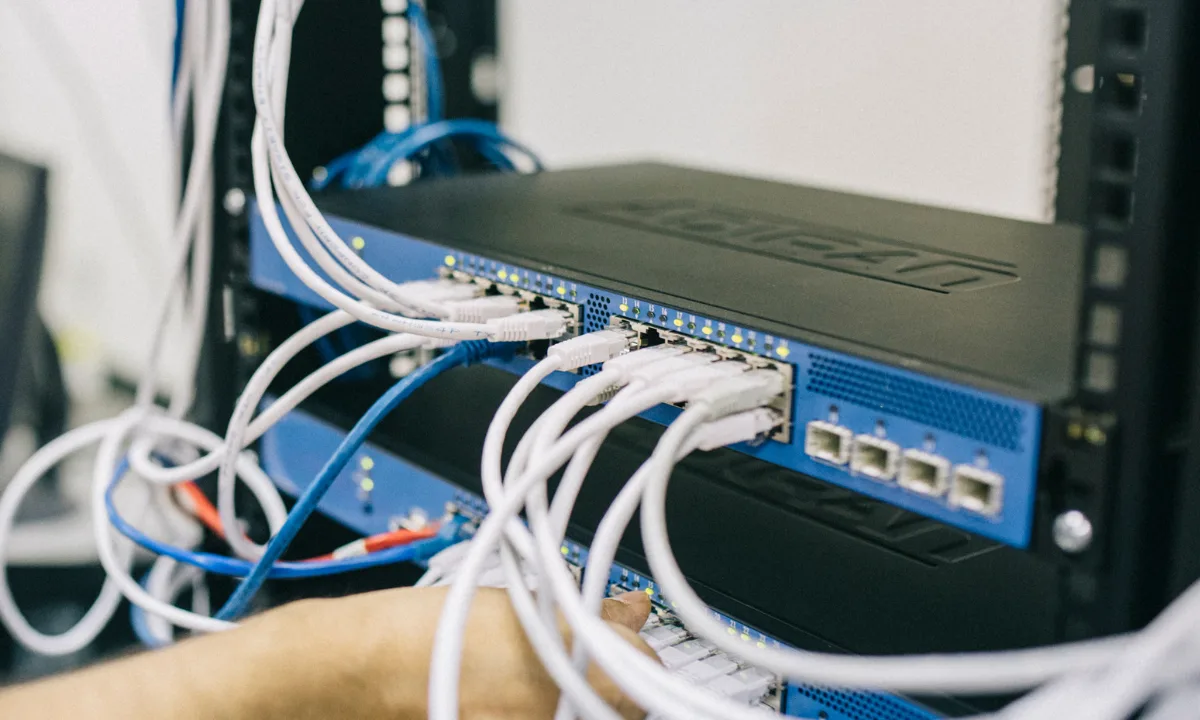
Network connectivity problems occur when a device cannot reliably communicate with the internet, local network resources, cloud services, or other systems. Common causes include Wi-Fi signal issues, Ethernet cable failures, DNS problems, DHCP configuration errors, network adapter driver issues, router or gateway problems, firewall restrictions, VPN misconfigurations, packet loss, service outages, and hardware failures. The most effective way to troubleshoot network connectivity problems is to identify the scope of the issue, verify physical connectivity, validate IP and DNS settings, test network paths, review recent changes, and determine whether the problem originates from the device, network, service provider, or destination system.
What Are Network Connectivity Problems?
Network connectivity problems occur when a device cannot successfully send or receive data across a network. The issue may affect internet access, internal resources, cloud applications, printers, file servers, VPN connections, or communication between devices.
Common symptoms include:
- No internet access
- Wi-Fi connected but websites do not load
- Ethernet connected but network resources unavailable
- Slow browsing
- Intermittent disconnections
- VPN failures
- DNS errors
- Dropped video calls
- Network drive failures
- Application timeouts
- Inability to reach internal systems
According to Microsoft Support, Windows includes troubleshooting tools that can help diagnose and repair common network and internet connection problems.
For IT teams, the goal is not only restoring connectivity but also identifying the root cause and preventing future incidents.
Why Network Connectivity Problems Happen
Network communication depends on multiple technologies working together.
A successful connection requires:
- Functional network hardware
- Correct IP addressing
- Working DNS resolution
- Reachable gateways
- Proper routing
- Functional network drivers
- Appropriate security policies
- Available destination services
If any of these components fail, connectivity can be affected.
The Internet Society explains that internet communication relies on interconnected systems including routing, addressing, naming services, transport protocols, and network infrastructure.
Because so many components are involved, troubleshooting works best when approached methodically.
According to CompTIA, structured troubleshooting reduces downtime by focusing on evidence rather than assumptions.
Step 1: Determine the Scope of the Problem
The first step is identifying how widespread the issue is.
Ask questions such as:
- Does the issue affect one user or many users?
- Does it affect one device or multiple devices?
- Does it affect Wi-Fi, Ethernet, or both?
- Does it affect one application or all applications?
- Does it affect one location or multiple locations?
- Did the issue begin after a change?
Understanding scope immediately narrows the investigation.
For example:
- One affected device often points to a device-specific issue.
- Multiple affected users may indicate a network issue.
- One failing application may indicate an application or DNS issue.
- A site-wide outage may indicate a router, firewall, ISP, or infrastructure problem.
This step often eliminates many possible causes before technical troubleshooting even begins.
Step 2: Verify Physical and Wireless Connectivity
Many connectivity issues originate at the physical layer.
For Ethernet connections, check:
- Network cables
- Docking stations
- Switch ports
- Link activity indicators
- Network hardware power status
For Wi-Fi connections, check:
- Signal strength
- Airplane mode status
- Correct SSID selection
- Wireless adapter status
- Distance from the access point
According to Microsoft Support, basic troubleshooting should include verifying wireless settings, restarting networking equipment, and confirming that the device is connected to the intended network.
Router manufacturers such as Netgear Support also recommend verifying physical connectivity before investigating higher-level network settings.
Many networking issues are resolved at this stage without requiring advanced diagnostics.
Step 3: Confirm IP Address Assignment
A device requires a valid IP address to communicate on a network.
Without proper IP configuration, the device may appear connected but remain unable to access resources.
Most modern networks use DHCP to automatically assign:
- IP addresses
- Subnet masks
- Default gateways
- DNS servers
According to ISC, DHCP automates address assignment and helps devices join networks without requiring manual configuration.
Common IP-related problems include:
- DHCP failures
- Duplicate IP addresses
- Incorrect static addresses
- Wrong subnet configurations
- Invalid gateways
Windows allows administrators to review and modify network addressing settings through Network and Internet configuration tools. Microsoft Support provides guidance for managing network settings and IP configuration.
If IP addressing is incorrect, no amount of DNS or application troubleshooting will resolve the problem.
Step 4: Test Local Network Connectivity
Before testing internet access, verify that local network communication works correctly.
Test access to:
- The default gateway
- Network printers
- File servers
- Internal websites
- Other local devices
If local communication succeeds but internet access fails, the issue may involve:
- DNS
- ISP connectivity
- Routing
- Firewall rules
If local communication fails entirely, the issue may involve:
- Network hardware
- VLAN configuration
- IP addressing
- Wireless infrastructure
- Network adapter problems
Separating local connectivity from internet connectivity helps isolate the affected layer quickly.
Step 5: Check DNS Resolution
DNS translates human-readable names into IP addresses.
Without DNS, users may have internet connectivity but still be unable to reach websites by name.
According to Cloudflare, DNS acts as the internet's directory service by translating domain names into IP addresses.
Common DNS symptoms include:
- Websites not loading by name
- Applications timing out
- Internal systems inaccessible by hostname
- Browser DNS errors
- Intermittent connectivity to specific services
DNS issues may result from:
- Misconfigured DNS servers
- DNS outages
- Incorrect records
- Security filtering
- Cached responses
The Internet Society identifies DNS as one of the most critical services supporting internet communication.
If a destination works using an IP address but fails using a hostname, DNS becomes a primary suspect.
Step 6: Investigate Packet Loss and Latency
Not all connectivity problems involve complete failures.
Many performance issues are caused by packet loss, latency, or network congestion.
According to Cloudflare, packet loss occurs when data packets fail to reach their destination.
Common symptoms include:
- Choppy video calls
- Voice quality issues
- Slow applications
- Delayed responses
- Frequent disconnects
- Remote desktop instability
- Cloud application timeouts
Packet loss may be caused by:
- Congested networks
- Faulty hardware
- Weak wireless signals
- ISP issues
- Routing problems
Unlike complete outages, packet loss often appears intermittent, making diagnosis more difficult.
For business users, packet loss can significantly impact productivity even when internet access technically remains available.
Step 7: Check Network Adapter Drivers
Driver issues can prevent network adapters from functioning correctly.
Symptoms may include:
- Missing adapters
- Wi-Fi unavailable
- Ethernet not detected
- Frequent disconnections
- Poor performance
- Blue screen errors
According to Microsoft Learn, wireless connectivity issues often involve driver configuration, adapter behavior, or network configuration.
Hardware vendors such as Intel Support, Dell Support, and Lenovo Support also recommend reviewing network adapter drivers when troubleshooting connectivity issues.
If the issue began immediately after a driver update, rollback may be appropriate.
Step 8: Review Firewalls, VPNs, and Security Controls
Security tools frequently affect network connectivity.
Potential causes include:
- Firewall rules
- VPN routing problems
- DNS filtering
- Endpoint protection policies
- Access control systems
- Split tunneling issues
VPN connectivity deserves special attention.
A VPN may establish successfully while still preventing access to internal resources due to DNS, routing, permissions, or firewall issues.
According to NIST, organizations should investigate unexpected connectivity issues alongside other indicators when assessing potential security incidents.
Security tools should always be considered when connectivity problems appear immediately after policy or software changes.
Step 9: Review Recent Changes
Many network incidents begin shortly after a change.
Review:
- Windows updates
- Driver updates
- Router changes
- Firewall modifications
- DNS changes
- VPN updates
- ISP maintenance
- Security policy changes
According to CompTIA, identifying recent changes is one of the most effective ways to isolate the root cause of a problem.
If multiple devices experience identical issues after a shared change, troubleshooting should focus on that change before investigating individual devices.
Step 10: Test Alternative Networks and Devices
One of the fastest ways to isolate a connectivity problem is by changing the environment.
Useful tests include:
- Connecting to a mobile hotspot
- Switching from Wi-Fi to Ethernet
- Testing another device
- Connecting through another access point
- Using another browser or application
If the device works on another network, the original network likely contains the issue.
If multiple devices fail on the same network, infrastructure becomes a stronger suspect.
Environmental testing helps determine whether the issue follows the device or remains tied to a specific network.
Common Network Connectivity Problems and Their Causes
Wi-Fi Connected but No Internet
Common causes include:
- Router failures
- ISP outages
- DNS issues
- Gateway problems
- DHCP failures
- Firewall restrictions
Ethernet Connected but Cannot Access Resources
Potential causes include:
- Switch port issues
- VLAN configuration problems
- Driver failures
- IP addressing errors
- Network access policies
VPN Connected but Internal Systems Unreachable
Potential causes include:
- DNS failures
- Routing issues
- Split tunneling problems
- Access control restrictions
- Firewall rules
Slow Network Performance
Potential causes include:
- Packet loss
- Latency
- Network congestion
- Weak Wi-Fi signals
- Hardware limitations
- Background traffic
One Website Not Loading
Potential causes include:
- DNS issues
- Website outages
- Content filtering
- Browser cache issues
- Routing problems
Each symptom points toward different troubleshooting paths, making symptom identification an important diagnostic step.
How IT Teams Should Troubleshoot Network Problems
A repeatable process helps reduce troubleshooting time.
A practical workflow includes:
- Identify the scope.
- Verify physical connectivity.
- Confirm IP addressing.
- Test local network access.
- Test DNS resolution.
- Check packet loss and latency.
- Review drivers.
- Review firewall and VPN settings.
- Investigate recent changes.
- Verify the resolution.
This structured approach aligns with troubleshooting methodologies promoted by CompTIA.
Documentation is equally important because recurring issues often reveal larger infrastructure problems.
How Level Helps With Network Troubleshooting
Network troubleshooting becomes easier when IT teams have visibility into endpoint health, device status, and recent changes.
Level helps IT teams and MSPs monitor endpoints, review device information, execute scripts, investigate connectivity-related symptoms, and identify patterns across distributed environments.
For example, if multiple devices begin experiencing network failures after a driver update or configuration change, Level can help technicians identify affected endpoints more quickly. If the issue affects only one endpoint, teams can focus their investigation on that specific device.
Level does not replace routers, firewalls, switches, DNS services, or ISP diagnostics. Instead, it helps support endpoint-side troubleshooting by providing visibility into the systems affected by connectivity problems.
How to Prevent Network Connectivity Problems
Organizations can reduce connectivity issues through proactive management.
Recommended practices include:
- Maintain current network drivers
- Test updates before deployment
- Monitor endpoint health
- Document DNS and DHCP settings
- Maintain network diagrams
- Review firewall changes carefully
- Keep networking firmware updated
- Monitor recurring incidents
- Standardize network configurations
- Maintain backup connectivity options
Preventive maintenance is often less expensive than recovering from repeated outages.
FAQ
What is the first step in troubleshooting network connectivity problems?
The first step is identifying the scope of the issue. Determine whether the problem affects one user, one device, one application, one network, or multiple locations.
Why am I connected to Wi-Fi but have no internet?
Common causes include DNS issues, router failures, ISP outages, gateway problems, DHCP failures, or firewall restrictions.
How do I know if DNS is the problem?
If websites fail by name but work by IP address, DNS is often responsible.
Can network drivers cause connectivity problems?
Yes. Faulty, outdated, or incompatible network adapter drivers can cause connectivity failures, poor performance, and intermittent disconnections.
What causes packet loss?
Packet loss may result from congestion, faulty hardware, weak wireless signals, ISP issues, or routing problems.
Why does my VPN connect but internal systems do not work?
VPN connectivity alone does not guarantee access. DNS, routing, permissions, firewall rules, and split tunneling can all affect access to internal resources.
Can security software cause network issues?
Yes. Firewalls, endpoint protection platforms, DNS filtering tools, and VPN clients can all affect network connectivity.
How can IT teams prevent recurring connectivity issues?
By maintaining standardized configurations, documenting changes, testing updates, monitoring endpoint health, and maintaining accurate network documentation.