
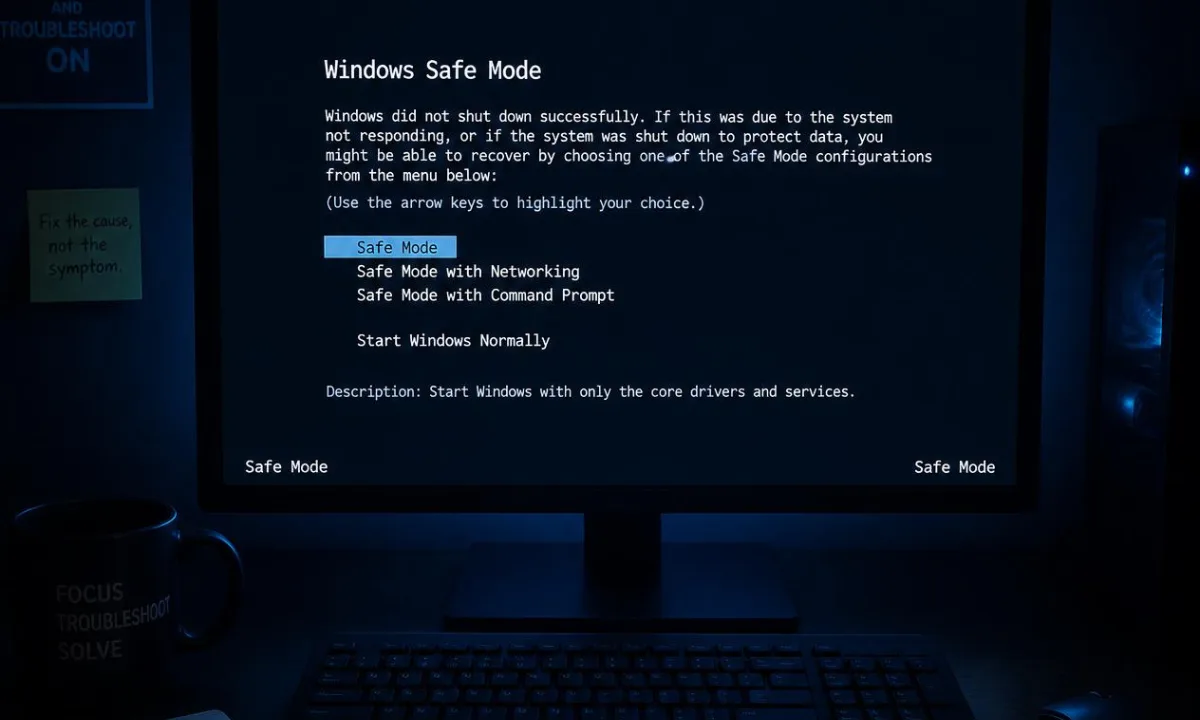
Windows Safe Mode is a special startup mode that launches Windows with only the essential drivers, services, and system components needed to operate. It is designed to help users and IT teams diagnose problems caused by faulty drivers, software conflicts, startup programs, malware, corrupted settings, failed updates, and other issues that may prevent Windows from running normally. If a problem disappears in Safe Mode, the cause is often related to something that loads during a standard Windows startup rather than Windows itself.
What Is Windows Safe Mode?
Windows Safe Mode is a built-in troubleshooting environment that starts the operating system in a limited state. Instead of loading all device drivers, startup applications, background services, and third-party software, Windows loads only the minimum components required to function.
According to Microsoft Support, Safe Mode helps users troubleshoot issues by starting Windows with a minimal set of files and drivers. This makes it easier to determine whether a problem is caused by the operating system itself or by something added after Windows was installed.
Safe Mode is commonly used when a computer:
- Crashes during startup
- Experiences blue screen errors
- Becomes unusually slow
- Fails after a driver installation
- Stops working properly after a Windows update
- Shows signs of malware infection
- Freezes during login
- Experiences application conflicts
Rather than fixing issues automatically, Safe Mode helps isolate their cause.
Why Windows Safe Mode Exists
Modern Windows systems load hundreds of components during startup. These may include hardware drivers, endpoint security agents, update services, synchronization tools, cloud applications, device management software, and other background processes.
When one of these components becomes corrupted or incompatible, Windows may become unstable. Safe Mode exists to provide a controlled environment where most of these nonessential components are prevented from loading.
The concept aligns with structured troubleshooting principles promoted by organizations such as CompTIA, which emphasize isolating variables and eliminating potential causes systematically.
By reducing the number of active components, Safe Mode helps answer a critical question:
Is the problem caused by Windows itself, or by something that loads alongside Windows?
This distinction can dramatically reduce troubleshooting time.
What Loads in Safe Mode?
Safe Mode starts Windows using a limited set of drivers and services.
Typically, Windows loads:
- Core operating system files
- Basic storage drivers
- Essential keyboard and mouse drivers
- Standard display drivers
- Fundamental system services
Many optional components are intentionally disabled, including:
- Most third-party startup programs
- Advanced graphics drivers
- Many background applications
- Some audio services
- Certain security agents
- Specialized device drivers
Because fewer components load, Safe Mode often appears different from a normal Windows session. Display resolution may be lower, visual effects may be disabled, and some hardware features may not function normally.
This simplified environment helps technicians determine whether a startup component is contributing to system instability.
Types of Windows Safe Mode
Windows provides multiple Safe Mode options, each intended for different troubleshooting scenarios.
Safe Mode
Standard Safe Mode loads only the minimum drivers and services required to run Windows.
This option is typically used when diagnosing:
- Startup problems
- Driver conflicts
- Software issues
- Blue screen errors
- General system instability
For most troubleshooting situations, standard Safe Mode should be the first option attempted.
Safe Mode with Networking
Safe Mode with Networking includes the network drivers and services necessary for internet and network connectivity.
This mode can be useful when users need to:
- Download updated drivers
- Access documentation
- Connect to remote support resources
- Access internal company systems
Because additional services are loaded, some technicians prefer to start with standard Safe Mode first and move to Networking mode only if internet access is required.
Safe Mode with Command Prompt
Safe Mode with Command Prompt replaces the standard Windows desktop environment with a command-line interface.
This option is commonly used by experienced administrators who need to:
- Run repair commands
- Modify system settings
- Access advanced troubleshooting tools
- Repair startup configurations
While less common for everyday users, it remains an important recovery option.
When Should You Use Safe Mode?
Safe Mode is useful whenever Windows behaves differently than expected and normal troubleshooting is difficult or impossible.
Common scenarios include:
Windows Startup Problems
If Windows fails to reach the desktop, becomes stuck in a restart loop, or freezes during boot, Safe Mode can provide access to troubleshooting tools that may not be available during normal startup.
Blue Screen Errors
Repeated stop code errors often point to driver issues, startup conflicts, or hardware problems. Microsoft notes that Safe Mode can help identify whether basic drivers and services are involved in the issue through Microsoft Support.
Driver Issues
Drivers are among the most common causes of Windows instability. If a recently installed driver causes crashes or freezes, Safe Mode can provide an environment where the problematic driver may not load.
Failed Updates
Occasionally, a Windows update, firmware update, or software deployment may introduce compatibility issues. Safe Mode allows users to remove or investigate recent changes more safely.
Malware Investigation
Safe Mode can sometimes help prevent certain malicious applications from automatically starting. However, modern malware response strategies generally focus on structured incident response rather than relying solely on Safe Mode.
According to NIST, organizations should follow formal incident handling procedures when dealing with potential security incidents.
What Safe Mode Can Help Diagnose
Safe Mode is valuable because it helps narrow the scope of a problem.
Driver Conflicts
A driver that causes crashes during normal startup may not load in Safe Mode.
If the issue disappears, technicians can focus their investigation on:
- Graphics drivers
- Network drivers
- Storage drivers
- Peripheral drivers
- Recently installed drivers
Microsoft's debugging documentation available through Microsoft Learn identifies driver-related failures as a common source of system crashes.
Startup Software Conflicts
Many applications automatically launch when Windows starts.
Examples include:
- Collaboration tools
- Cloud synchronization software
- Endpoint management agents
- Backup software
- Printer utilities
If Safe Mode works normally, a startup application may be responsible.
Operating System Corruption
Corrupted settings or damaged system files may become easier to identify when startup variables are reduced.
Technicians can use Safe Mode to run diagnostic and repair tools while minimizing interference from third-party software.
Hardware vs. Software Problems
One of Safe Mode's most valuable functions is helping separate hardware issues from software issues.
Hardware manufacturers such as Dell Support and Lenovo Support commonly recommend Safe Mode during troubleshooting because it helps determine whether instability is tied to software components or persists regardless of startup configuration.
If a device continues crashing in Safe Mode, technicians may begin investigating:
- Memory failures
- SSD or hard drive issues
- Motherboard problems
- Overheating
- Power instability
How Windows Recovery Environment Supports Safe Mode
Many users encounter Safe Mode through the Windows Recovery Environment, often called WinRE.
WinRE is a built-in recovery platform that provides access to troubleshooting and recovery tools when Windows cannot start normally.
According to Microsoft Support, Windows Recovery Environment includes:
- Startup Repair
- System Restore
- Startup Settings
- Command Prompt
- Uninstall Updates
- Recovery options
Safe Mode is accessed through Startup Settings within this environment.
For severe startup failures, WinRE is often the first step before entering Safe Mode.
Safe Mode vs. Clean Boot
Safe Mode and Clean Boot are often confused because both are used for troubleshooting.
However, they serve different purposes.
Safe Mode starts Windows with a highly restricted set of drivers and services.
A Clean Boot starts Windows normally while disabling nonessential startup applications and services.
According to Microsoft Support, a Clean Boot helps identify software conflicts while maintaining a more complete Windows environment.
In practice:
- Safe Mode is useful when Windows is unstable or cannot start properly.
- Clean Boot is useful when Windows starts normally but experiences application conflicts or performance issues.
Many technicians use Safe Mode first and then move to Clean Boot testing once the system becomes stable enough for deeper analysis.
What Safe Mode Cannot Do
Safe Mode is a troubleshooting tool, not a repair solution by itself.
It cannot:
- Replace failed hardware
- Automatically repair Windows
- Guarantee malware removal
- Solve physical device damage
- Restore corrupted files automatically
- Fix all startup problems
Users sometimes assume that because a device works in Safe Mode, the problem is solved. In reality, Safe Mode only helps identify where the problem is likely located.
The underlying issue must still be addressed.
Common Safe Mode Mistakes
Several mistakes can make troubleshooting more difficult.
Changing Too Many Things at Once
Removing multiple applications, uninstalling drivers, and changing settings simultaneously makes it difficult to identify the true cause.
Assuming the Problem Is Fixed
A successful Safe Mode boot simply indicates that Windows can run with limited components.
Additional testing is required.
Leaving Safe Mode Enabled
Some users configure Windows to always start in Safe Mode and forget to revert the setting.
This can lead to confusion when features remain unavailable after troubleshooting is complete.
Ignoring Hardware Symptoms
If crashes continue in Safe Mode, technicians should consider hardware diagnostics rather than focusing exclusively on software.
Hardware vendors such as Intel emphasize that persistent instability can indicate memory, thermal, storage, or motherboard issues.
Best Practices for IT Teams
IT teams should use Safe Mode as part of a structured troubleshooting process.
Recommended practices include:
- Document symptoms before making changes
- Record stop codes and error messages
- Review recent updates and driver changes
- Test behavior in Safe Mode
- Compare affected devices against healthy systems
- Validate fixes in normal startup mode
- Document final resolutions
These practices align with the systematic troubleshooting methodologies commonly taught by organizations such as CompTIA.
For managed environments, Safe Mode findings should also be correlated with endpoint management data to identify broader patterns.
How Level Supports Windows Troubleshooting
While Safe Mode remains an important Windows troubleshooting tool, IT teams often need broader visibility into endpoint health and system behavior.
Level helps IT teams and MSPs monitor endpoints, access devices remotely, run scripts, review system information, and investigate issues across distributed environments. This visibility can help identify patterns involving crashes, failed updates, driver issues, and performance problems before technicians resort to manual troubleshooting on individual devices.
For organizations managing large numbers of endpoints, centralized monitoring and management help reduce troubleshooting time and improve consistency.
Safe Mode remains valuable for isolating local system issues, while Level supports the larger endpoint management and troubleshooting workflow.
Why Safe Mode Matters
Safe Mode has remained one of Windows' most valuable diagnostic tools because it helps isolate problems rather than simply reacting to symptoms.
By loading only essential components, Safe Mode provides a controlled environment that helps users and technicians determine whether issues originate from drivers, startup applications, software conflicts, updates, or deeper system problems.
For both individual users and enterprise IT teams, Safe Mode serves as an important checkpoint in the troubleshooting process. It reduces uncertainty, improves diagnostic accuracy, and helps narrow investigations before more advanced remediation steps are taken.
FAQ
What is Windows Safe Mode?
Windows Safe Mode is a troubleshooting startup mode that loads Windows with only essential drivers and services so users can diagnose system problems.
What is Safe Mode used for?
Safe Mode is used to troubleshoot startup failures, blue screen errors, driver problems, software conflicts, malware symptoms, and Windows instability.
What is the difference between Safe Mode and Safe Mode with Networking?
Safe Mode loads only essential Windows components. Safe Mode with Networking adds network drivers and services so users can access the internet or network resources.
Does Safe Mode remove malware?
No. Safe Mode may help prevent some malicious programs from starting automatically, but malware removal should rely on approved security tools and established incident response procedures.
Why does my PC work in Safe Mode but not normally?
This usually indicates that a driver, startup application, service, update, or configuration change that loads during normal startup is causing the issue.
Is Safe Mode the same as a Clean Boot?
No. Safe Mode loads a minimal Windows environment. A Clean Boot starts Windows normally while disabling nonessential startup services and applications.
Can hardware problems appear in Safe Mode?
Yes. If crashes or instability continue in Safe Mode, hardware issues such as memory failures, storage problems, overheating, or motherboard faults may be involved.
Can I use Safe Mode every day?
Safe Mode is intended for troubleshooting and diagnostics. It should not be used as a permanent operating environment.