
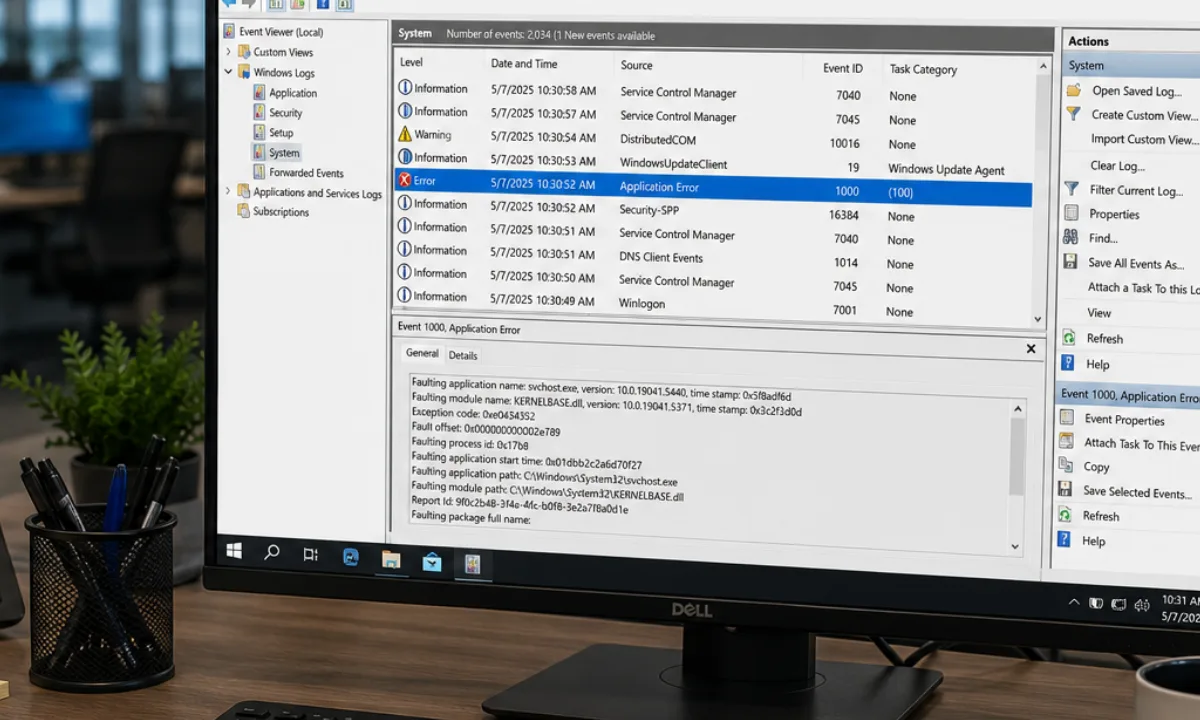
Event Viewer is a built-in Windows tool that allows users and IT professionals to view, analyze, and troubleshoot system logs generated by Windows, applications, drivers, and services. It serves as a central location for reviewing events recorded by the operating system, helping administrators diagnose crashes, investigate login activity, troubleshoot software issues, and identify potential security concerns. According to Microsoft, Windows Event Log provides a standardized framework for collecting and storing these events across the operating system and installed applications.
For IT teams, Event Viewer is one of the most important diagnostic tools available in Windows because it provides visibility into what happened on a device, when it happened, and which component generated the event.
How Event Viewer Works
Windows constantly records information about system activity in event logs. Whenever an application crashes, a service fails to start, a driver encounters an issue, or a user logs in, Windows can create an event record containing details about that activity.
Event Viewer provides a graphical interface for reviewing these records. Each event contains information such as:
- Date and time
- Event source
- Event ID
- Event level
- User account
- Computer name
- Detailed description
This information allows administrators to correlate user-reported issues with system activity and identify potential root causes. Event Viewer acts as the primary interface for navigating Windows event logs and investigating operational issues.
Why Event Viewer Is Important
Many Windows issues leave evidence in system logs before users notice a problem. Event Viewer helps IT teams uncover that evidence and understand what happened behind the scenes.
For example, Event Viewer can help answer questions such as:
- Why did a computer restart unexpectedly?
- Why won't a service start?
- Why did an application crash?
- Why is a user unable to log in?
- What happened before a system outage?
- Did Windows Update complete successfully?
Instead of relying solely on user descriptions, administrators can review objective system records to support troubleshooting and incident investigations.
Event logs are also valuable for security monitoring. The National Cyber Security Centre emphasizes that system logging is a critical component of detecting suspicious activity, supporting investigations, and understanding how systems behave during security incidents.
Understanding the Main Event Viewer Logs
The most commonly used logs are located under the Windows Logs section.
Application Log
The Application log contains events generated by installed software and applications.
Common entries include:
- Application crashes
- Software startup failures
- Database errors
- Service-related issues
- Licensing problems
When a user reports that a specific application keeps freezing or closing unexpectedly, the Application log is often the first place administrators investigate.
Security Log
The Security log records events generated through configured audit policies. These events can include successful and failed sign-ins, account management activity, privilege use, and other security-related actions.
Security logs are frequently used during:
- Access investigations
- Compliance reviews
- Authentication troubleshooting
- Security incident response
System Log
The System log records events generated by Windows system components, drivers, and services.
This log commonly contains:
- Driver failures
- Service startup issues
- Hardware-related events
- Operating system warnings
- Unexpected shutdowns
Many administrators start with the System log when investigating performance or stability issues.
Setup Log
The Setup log contains events related to Windows installation and update processes.
This log is especially useful when troubleshooting:
- Failed updates
- Operating system upgrades
- Installation errors
- Deployment issues
Forwarded Events
Forwarded Events stores logs collected from other computers through Windows Event Forwarding.
Organizations that centralize logging often use forwarded events to simplify monitoring and investigations across multiple devices. Microsoft Tech Community identifies these logs as a core part of Windows event management.
Applications and Services Logs
In addition to Windows Logs, Event Viewer includes Applications and Services Logs.
These logs provide detailed information from specific Windows components and applications. Many modern Windows services use Event Tracing for Windows (ETW), a high-performance logging framework that generates more granular diagnostic information than traditional logs.
According to Microsoft, Applications and Services Logs often contain the most detailed troubleshooting information available for specific Windows features and services.
Examples include logs for:
- Microsoft Defender
- DNS services
- Group Policy
- Windows PowerShell
- Windows Update
- Hyper-V
For advanced troubleshooting, administrators frequently review these logs after examining the standard Windows Logs categories.
Understanding Event Levels
Event Viewer categorizes events by severity level.
Critical
Critical events indicate serious issues that may impact system availability or functionality.
Examples include:
- Major system failures
- Unexpected shutdowns
- Severe operating system errors
Error
Error events indicate that a problem occurred.
Examples include:
- Application crashes
- Failed services
- Driver failures
Warning
Warning events indicate a condition that could become problematic if left unresolved.
Examples include:
- Resource limitations
- Configuration issues
- Communication failures
Information
Information events document normal system operations.
Examples include:
- Successful service startups
- User logins
- Completed tasks
Verbose
Some Windows components and applications generate Verbose events that provide detailed diagnostic information for troubleshooting and development purposes. Verbose events are designed to capture highly detailed operational data and are commonly associated with ETW providers.
It is important to understand that not every warning or error indicates a serious problem. Windows systems frequently record warnings and errors while continuing to function normally. As noted in guidance published through Microsoft, many systems contain numerous logged warnings and errors that do not necessarily indicate a hardware or software failure.
What Is an Event ID?
An Event ID is a numeric identifier assigned to a specific event type generated by an event source.
Event IDs help administrators:
- Search documentation
- Identify recurring issues
- Compare events across systems
- Build monitoring rules
However, Event IDs are not globally unique.
According to Microsoft Tech Community, the same Event ID number may have different meanings depending on the source that generated it. For that reason, administrators should always review the event source and description alongside the Event ID itself.
One well-known example is Event ID 41, which records an unexpected restart or improper shutdown. Microsoft explains that while Event ID 41 confirms the shutdown was not clean, additional investigation is often required to determine the root cause.
How IT Teams Use Event Viewer for Troubleshooting
Event Viewer is most effective when used as part of a structured troubleshooting process.
A common workflow includes:
- Identify the reported issue.
- Determine when the issue occurred.
- Open the relevant log category.
- Filter events by time and severity.
- Review events surrounding the incident.
- Identify relevant event sources and Event IDs.
- Validate findings using additional system data.
For example, if a workstation unexpectedly restarts, administrators may review the System log for events occurring immediately before the reboot. If a business application crashes repeatedly, the Application log can help identify the failure point.
Because Windows systems generate large volumes of data, filtering is critical. According to Windows Central, Event Viewer allows administrators to filter logs by event level, source, Event ID, and time range, making investigations significantly more efficient.
Custom Views can further streamline troubleshooting by automatically displaying events that match predefined criteria.
Event Viewer and Security Monitoring
Event Viewer plays an important role in security monitoring and incident response.
Security teams commonly review logs to investigate:
- Failed login attempts
- Account lockouts
- Privilege escalation activity
- Administrative changes
- Policy modifications
The SANS Institute notes that effective log analysis is essential for detecting attacks, understanding incidents, and supporting forensic investigations.
Organizations often supplement native Windows logs with additional telemetry sources. One common example is Sysmon, a system monitoring utility developed by Microsoft Sysinternals.
According to Microsoft Sysinternals, Sysmon records detailed events such as process creation, network connections, and file modifications directly into the Windows event logging system. These additional records can significantly improve visibility during security investigations.
Limitations of Event Viewer
Although Event Viewer is powerful, it has several limitations.
First, it is primarily a diagnostic tool rather than a monitoring platform. It helps explain what happened after an event occurs but does not proactively resolve issues.
Second, logs can become noisy. Large environments may generate thousands of events daily, making manual analysis difficult.
Third, Event Viewer is designed primarily for individual systems. While remote log access is supported, reviewing logs across hundreds or thousands of endpoints becomes inefficient without centralized management.
Finally, event data requires context. A warning or error alone rarely explains an issue completely. Administrators often need to combine event data with performance metrics, user reports, configuration reviews, and security analysis.
The Graylog team notes that centralized log management becomes increasingly important as organizations scale because manually reviewing logs across numerous systems is time-consuming and difficult to maintain.
Where Level Fits In
Event Viewer provides valuable diagnostic information, but modern IT teams often need more than visibility into individual endpoints.
Level helps organizations manage and support Windows devices remotely by providing endpoint visibility, remote access, scripting capabilities, automation workflows, and centralized management.
For example, Event Viewer may identify a recurring service failure on a device. Using Level, administrators can then remotely investigate the affected endpoint, restart services, run diagnostic scripts, deploy fixes, or automate remediation workflows without requiring physical access to the machine.
In practice, Event Viewer helps explain what happened, while Level helps IT teams respond efficiently across their environment.
Best Practices for Using Event Viewer
To get the most value from Event Viewer:
Start with a specific problem rather than browsing logs randomly.
Focus on events occurring immediately before, during, and after the reported issue.
Use filters to reduce noise and isolate relevant events.
Review event source information alongside Event IDs.
Look for recurring patterns instead of isolated warnings.
Check both Windows Logs and Applications and Services Logs when troubleshooting complex issues.
Document important findings, including timestamps, event sources, Event IDs, and corrective actions.
Following these practices helps administrators identify root causes more efficiently and avoid spending time on unrelated log entries.
FAQ
What is Event Viewer used for?
Event Viewer is used to review Windows logs related to applications, services, drivers, security activity, hardware events, and operating system processes. It helps administrators diagnose issues and investigate system behavior.
Is Event Viewer safe to use?
Yes. Event Viewer is a built-in Windows administrative tool that only displays log information. Viewing logs does not change system settings or affect device operation.
Can Event Viewer show login activity?
Yes. The Security log can record successful and failed sign-in attempts when the appropriate audit policies are configured.
What is the difference between Event Viewer and Windows Event Log?
Windows Event Log is the logging system that records events. Event Viewer is the interface used to view and analyze those logs. This distinction is documented by Microsoft.
Are Event Viewer errors always serious?
No. Many systems generate warnings and errors during normal operation. The significance of an event depends on its context, frequency, source, and relationship to observed symptoms.
What should I check first in Event Viewer?
For general troubleshooting, administrators typically start with the System and Application logs. Security-related investigations usually begin with the Security log.
Can Event Viewer monitor multiple computers?
Event Viewer can connect to remote computers, but managing large numbers of endpoints is usually easier with centralized monitoring and endpoint management solutions.